How to Turn BOOX Note Air5 C Recordings into Transcripts with Gemini Notebook
Listen fully during the discussion. Review the transcript afterwards.
During a meeting or thesis-advising session, your attention belongs with the people in the room. With the BOOX Note Air5 C, you can record the conversation while handwriting the points that matter, then send the recording to Google’s Gemini Notebook (formerly NotebookLM) for transcription and review.
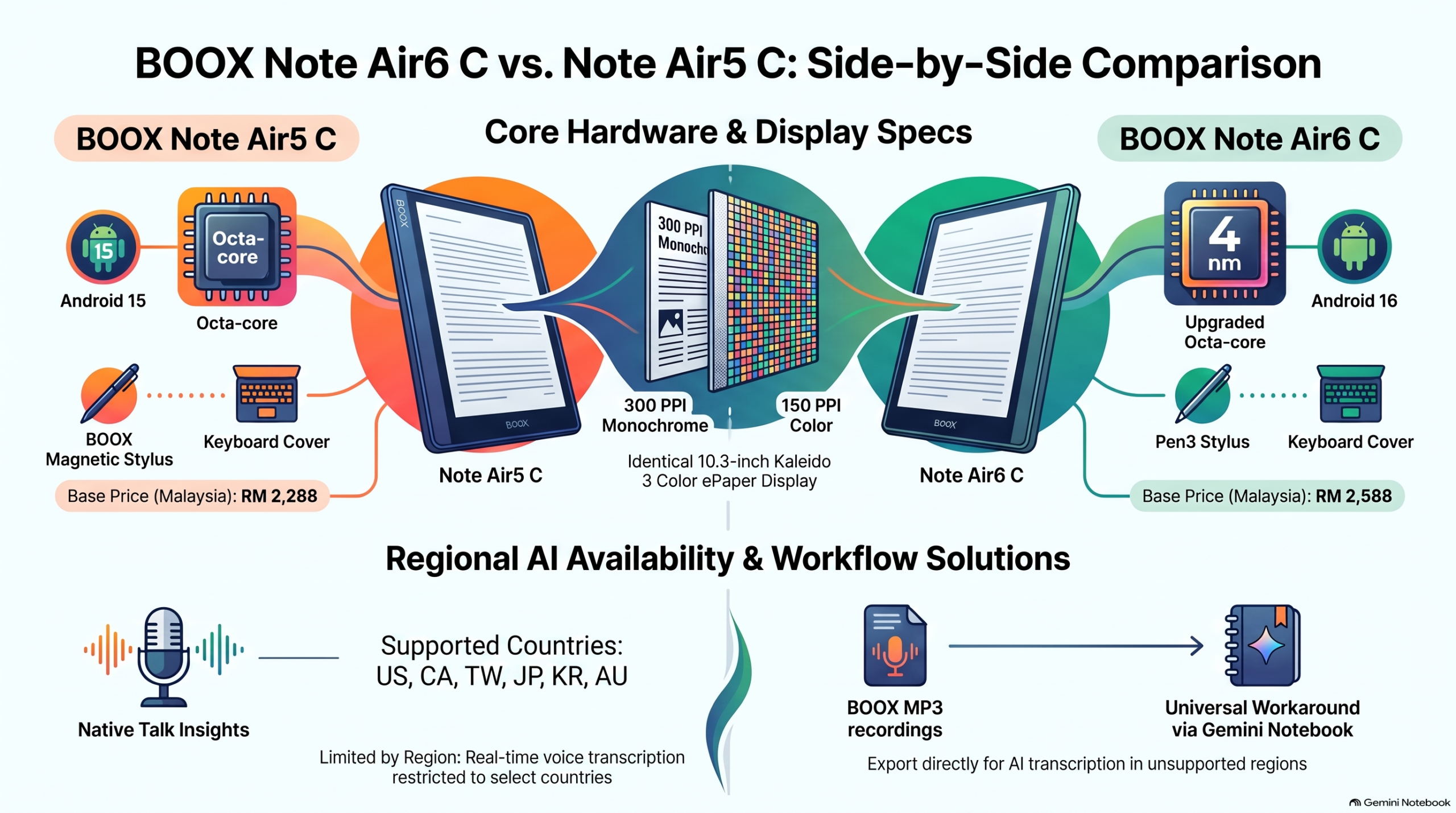
This guide uses the 10.3-inch BOOX Note Air5 C running Android 15 and the recording workflow shown in our screenshots. It offers a practical alternative for Malaysian users who do not currently have access to BOOX Talk Insights. Talk Insights supports real-time transcription in selected regions and languages; availability can change with firmware and service updates.
Already exploring the next model? See the BOOX Note Air6 C. The screenshots below demonstrate the Note Air5 C workflow; menu labels may differ on other models.
Why record first and review later
Recording first lets you stay present without continually checking a scrolling transcript. Write brief keywords, questions, sketches and decisions on your BOOX notebook, then return to the recording when you have time to review it carefully.
After the session, you can ask Gemini Notebook to produce a readable transcript draft and identify key discussion points. You can also bring your handwritten notes into the same notebook as a PDF to provide context for your review.
The benefit is a better review process. A cleanup prompt can improve punctuation and readability, but it cannot guarantee better speech recognition or recover words that were not captured clearly. Check important names, numbers, quotations and thesis instructions against the original recording. A chat response is a new draft; it does not automatically repair the imported transcript.
Watch the recording and transcription walkthrough
This 1-minute 24-second video accompanies the guide. Watch it first, then follow the detailed steps below.
Watch the accompanying demonstration on YouTube.
Before you begin
- Install Google’s official Gemini Notebook app through the Google Play Store on your BOOX and sign in to your Google account. Search for NotebookLM too if your listing still uses the older name.
- Connect to Wi-Fi for uploading and processing. Google’s Android app supports Android 10 and later, so that means, all New BOOX Go6 (Gen2), Go7, GoColor7(Gen2), Go10.3″ (Gen2) Lumi, Note Air5 C, NoteMax 13.3″ and TabXC 13.3″ ePaper Tablet all meets that operating-system requirement.
- Check battery level and available storage, and make a short test recording before an important session.
- Let participants know you are recording and obtain permission before recording or uploading their discussion. For confidential research, follow your institution’s rules for cloud services.
Step 1 Record while handwriting your notes
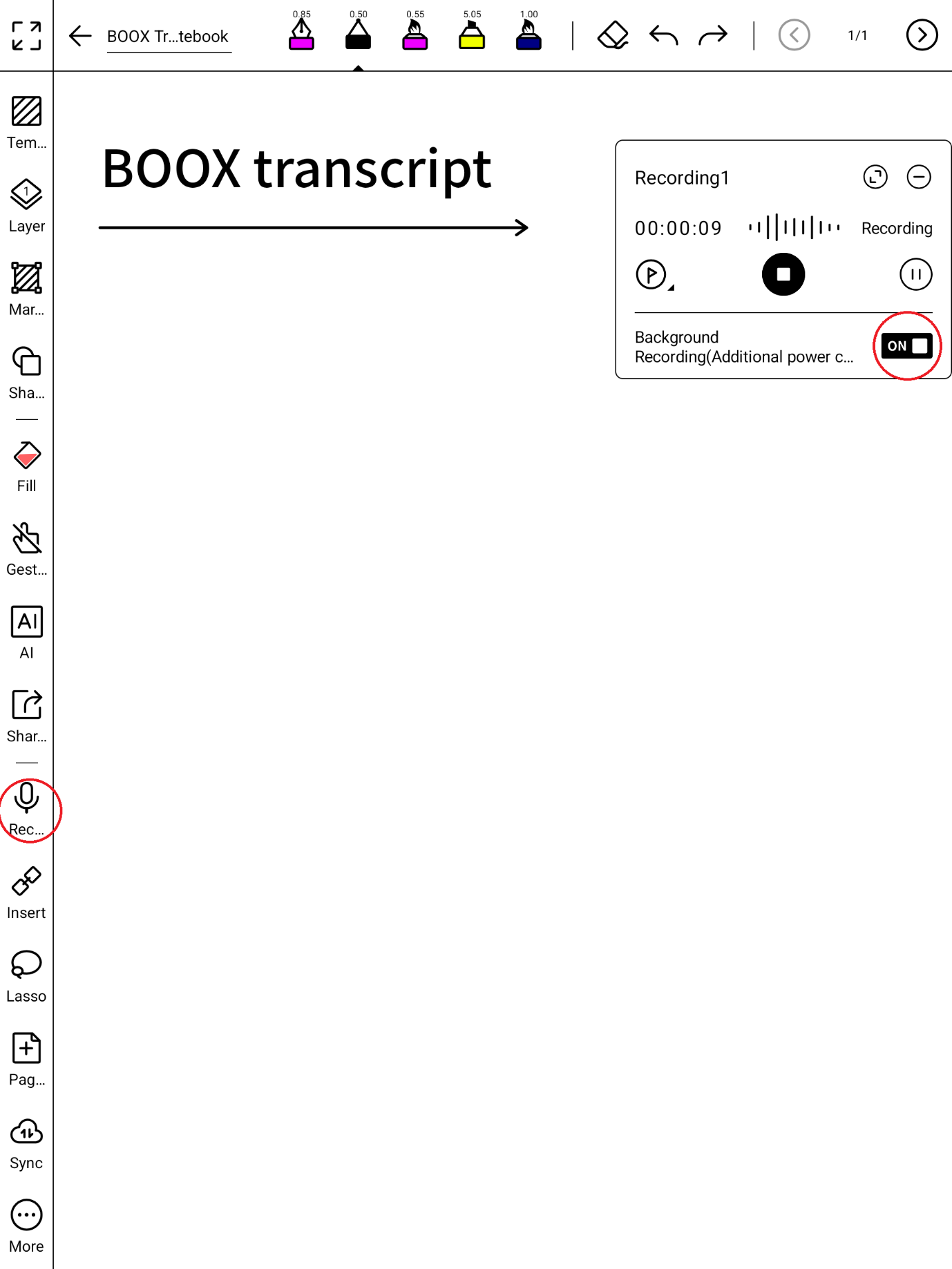
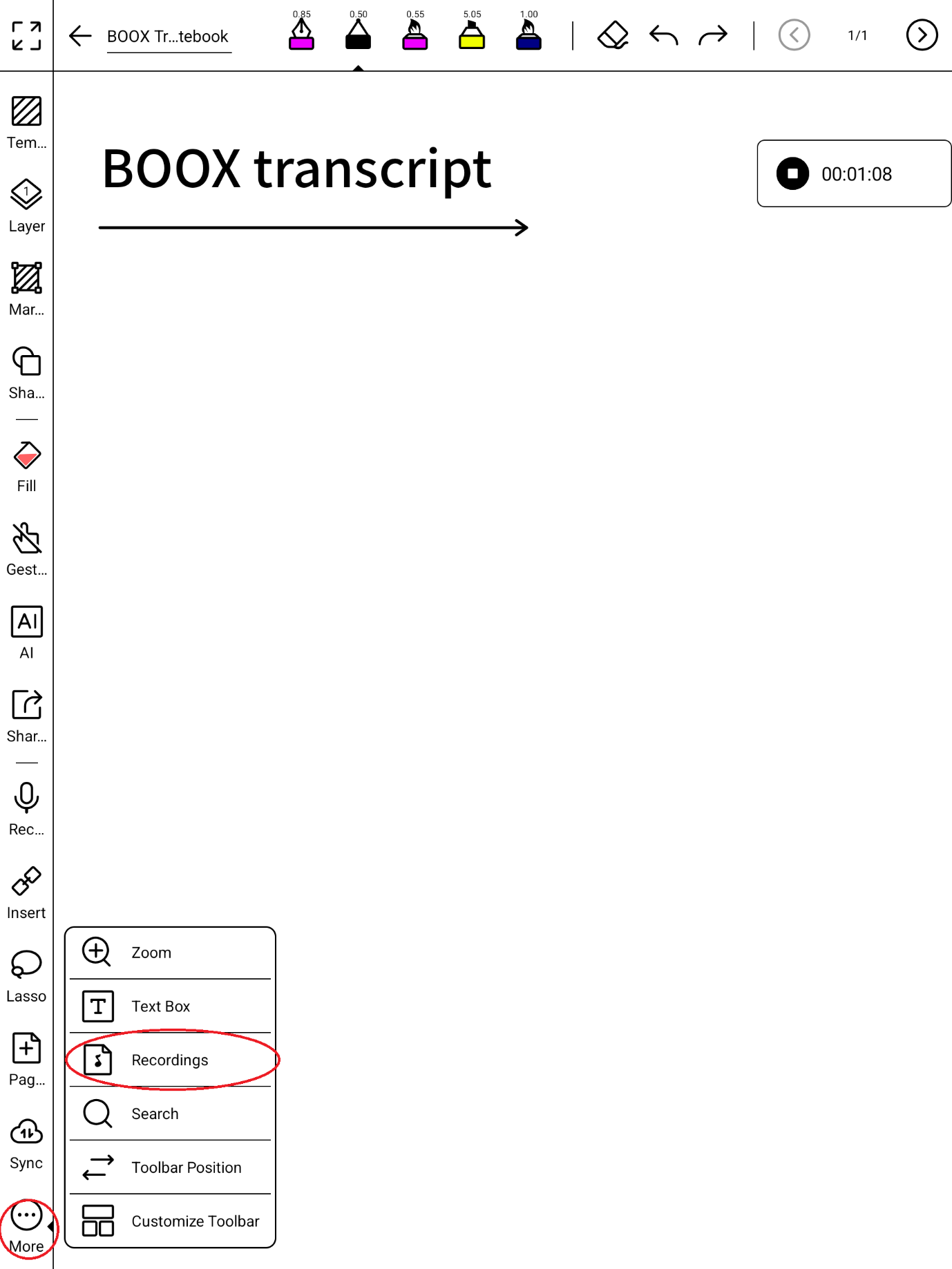
Open a notebook in the BOOX Notes app. Tap the Recorder icon on the handwriting toolbar and start recording.
In the demonstrated workflow, you can enable Background Recording to continue recording while working with your notes. This may consume more power. Confirm that the recording indicator remains active when changing views.
Write the points that help you think: questions to ask, names to check, diagrams and decisions. The elapsed-time indicator can also help you keep track of the session. You can stop for breaks and make multiple recordings within the same BOOX notebook.
Place the tablet where voices are clear, keep its microphone unobstructed and minimise overlapping speech.
Step 2 Export the recording as an MP3 file
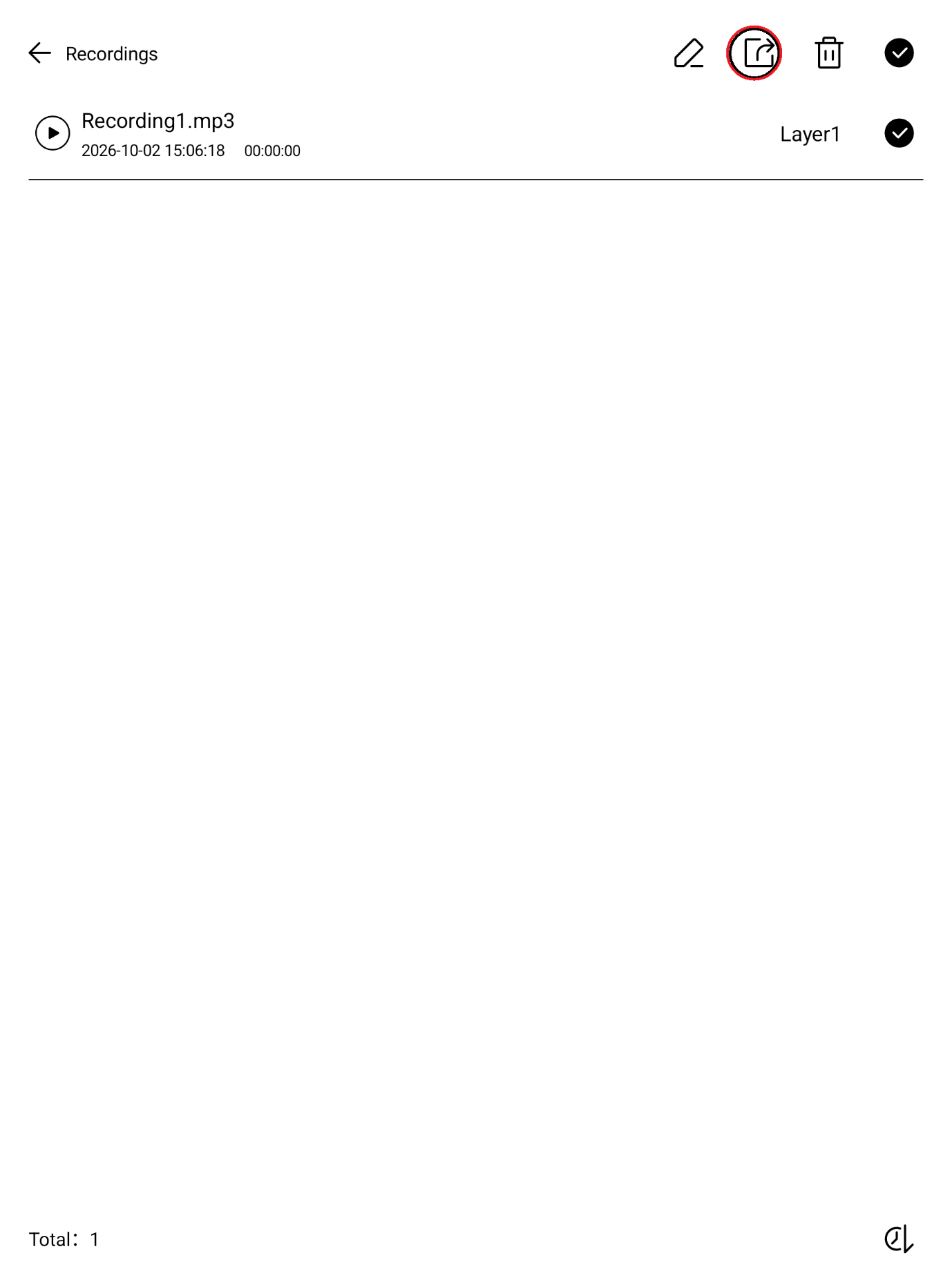
When the session ends, stop recording. Open Recordings from the notebook toolbar or its tools menu. Select the recording you need and tap the Share or Export icon to export it as an MP3 file.
Save it somewhere easy to find in BOOX Storage. A useful filename is 2026-10-02 Thesis Advising Part 1.mp3. Keep the original audio as your reference, especially when the session contains important instructions.
Step 3 Share the MP3 to Gemini Notebook
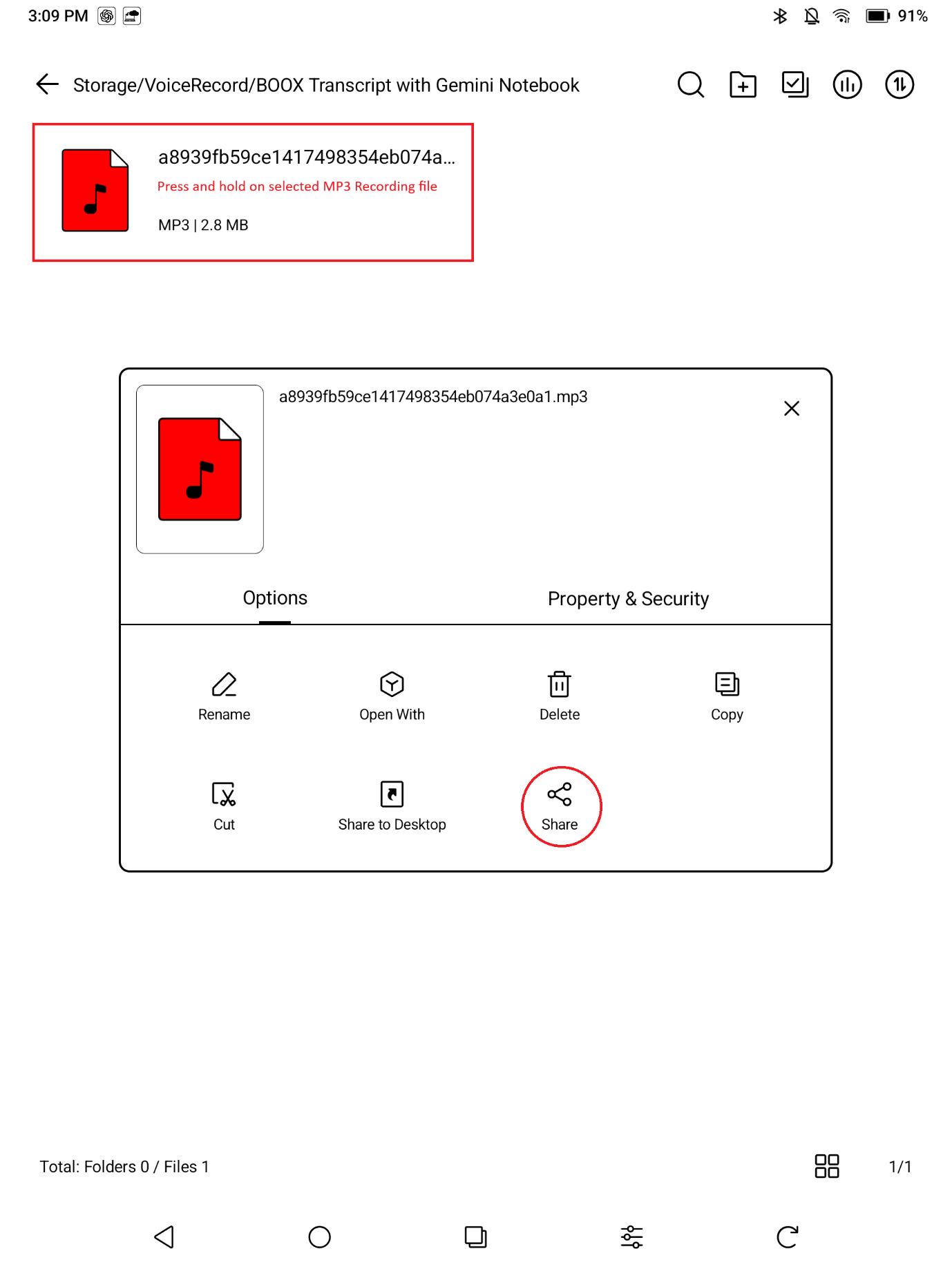
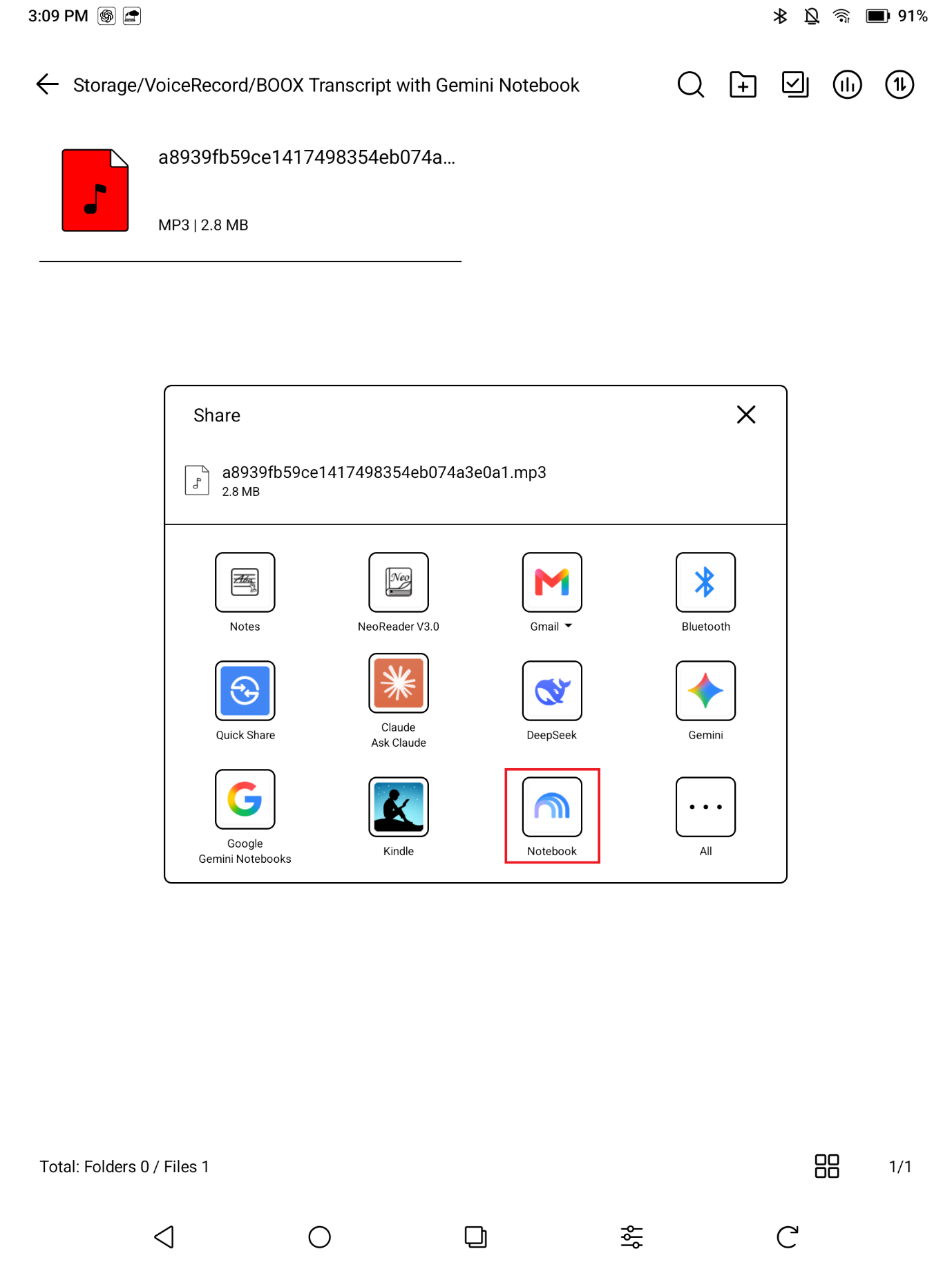
In BOOX Storage, find the exported MP3. Press and hold the file to open its options menu, then tap Share. Choose the Notebook or Gemini Notebook icon from Android’s sharing options.
Select an existing Google notebook for the project, or tap Create new to start one for this session. The BOOX handwritten notebook and the Google notebook are separate: sharing the audio does not automatically transfer your handwritten pages.
If the app is missing from the sharing menu, open Gemini Notebook directly, create or open a notebook and use Add sources to upload the audio file. You can also use the web version if the app’s available controls differ.
Step 4 Wait for the transcript and inspect it
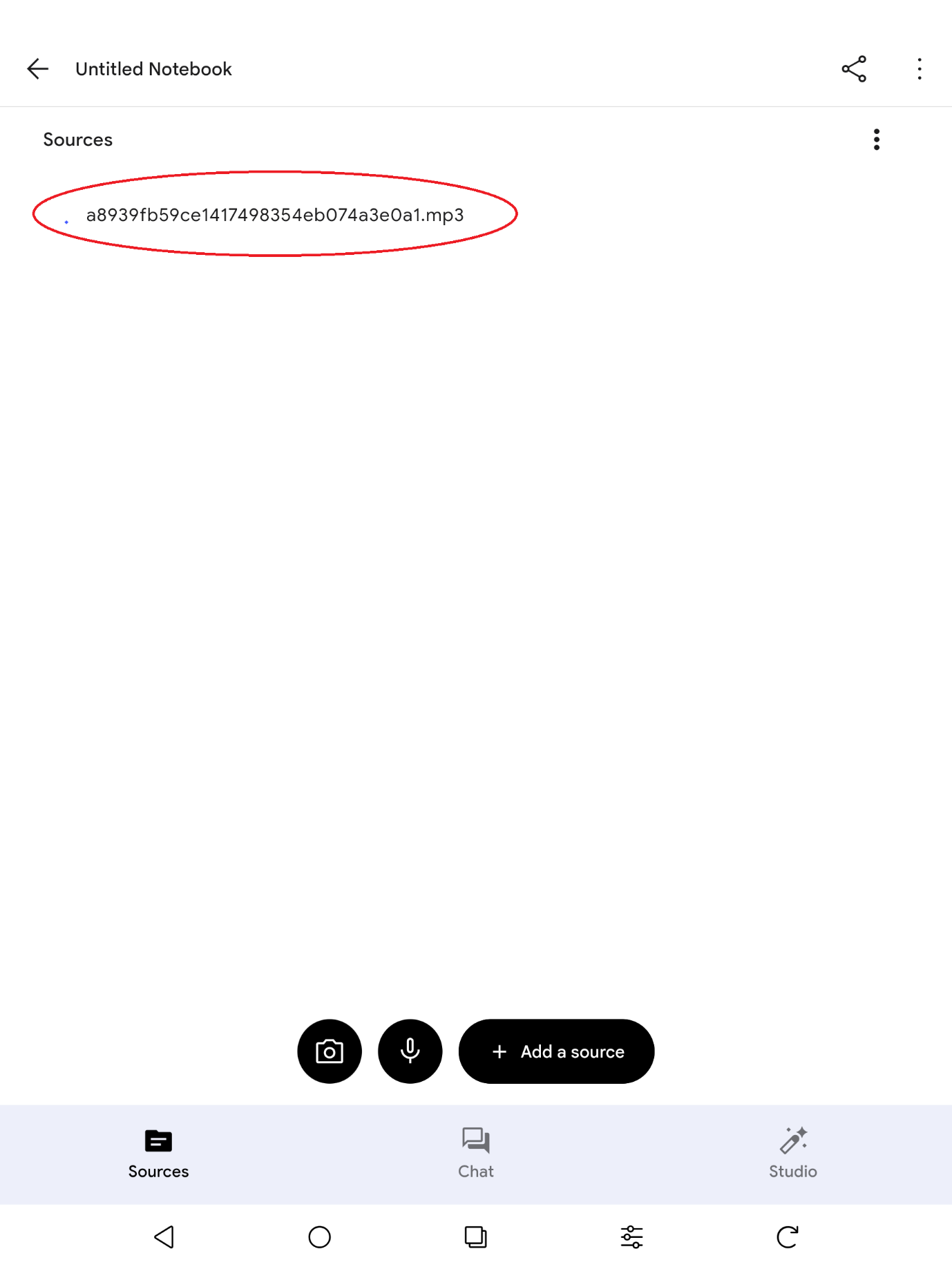
Gemini Notebook transcribes the audio during import and stores the resulting text as a source. Wait until processing finishes, then tap the recording in Sources to inspect its transcript. Processing time varies with recording length, connection and service load.
MP3 is supported. Google also lists English and Malay among its supported audio-import languages. Mixed-language discussions, accents, technical terms and background noise still need careful checking.
Step 5 Ask for a clean transcript and discussion points
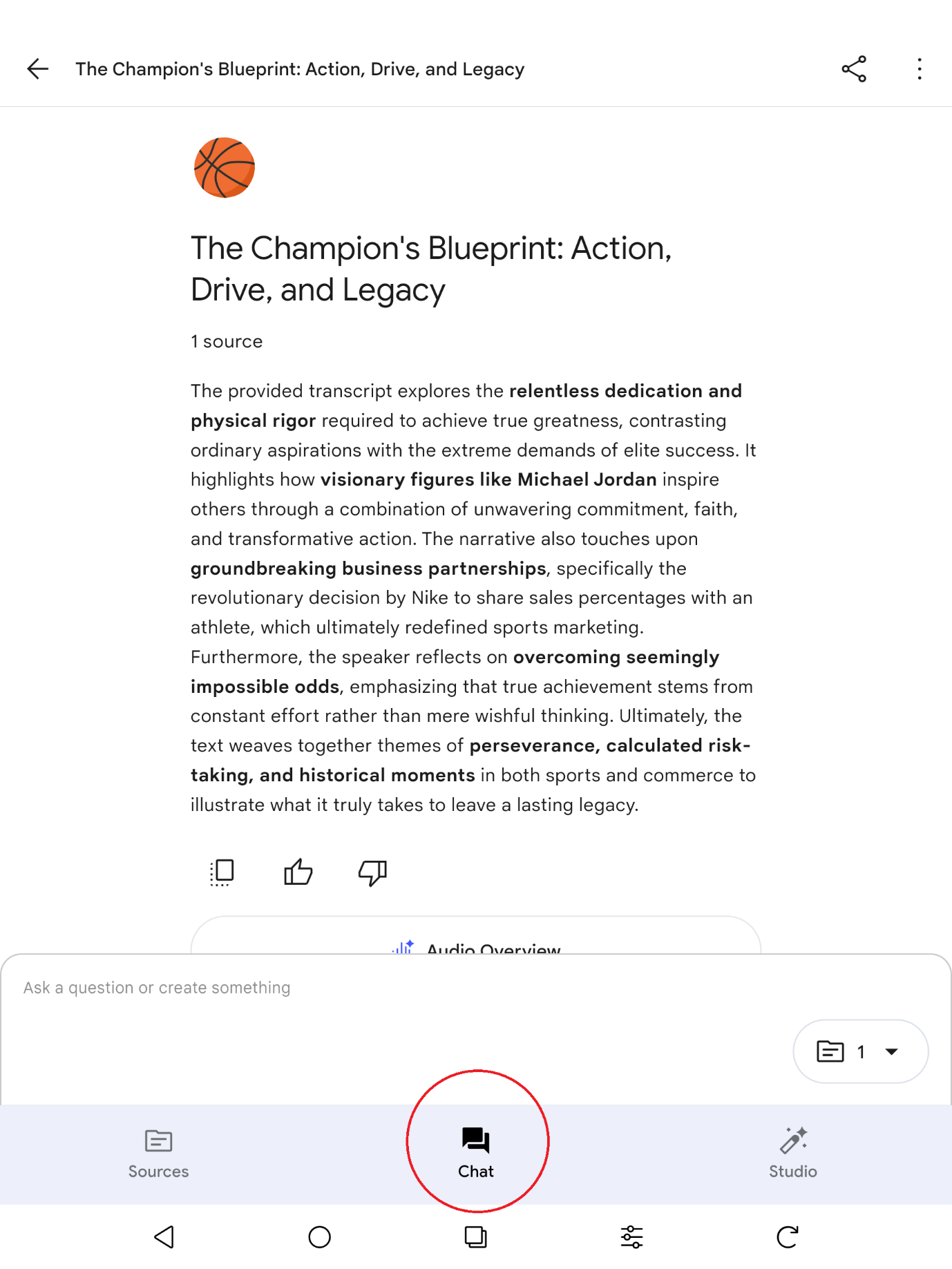
Open Chat and select the recording source you want to review. Start with:
Give me a clean transcript and identify key discussion points.
For a more controlled draft, use:
Using only the selected recording transcript, produce a clean transcript draft. Improve punctuation and remove repeated filler words while preserving meaning and the original language. Do not summarise the transcript or invent missing words, speaker names or timestamps. Mark unclear passages as [unclear]. Then list key discussion points, decisions and follow-up tasks separately. Use “Not specified” for any missing owner or deadline. If the recording is too long for one response, work through it in labelled parts.
Read the result alongside the source. Cleanup can make an error look convincing, so verify anything consequential against the audio. Copy the reviewed draft into your preferred document editor, make confirmed corrections and, if useful, upload that corrected text as a separate source labelled Reviewed transcript.
Step 6 Bring your handwritten PDF notes into the same notebook
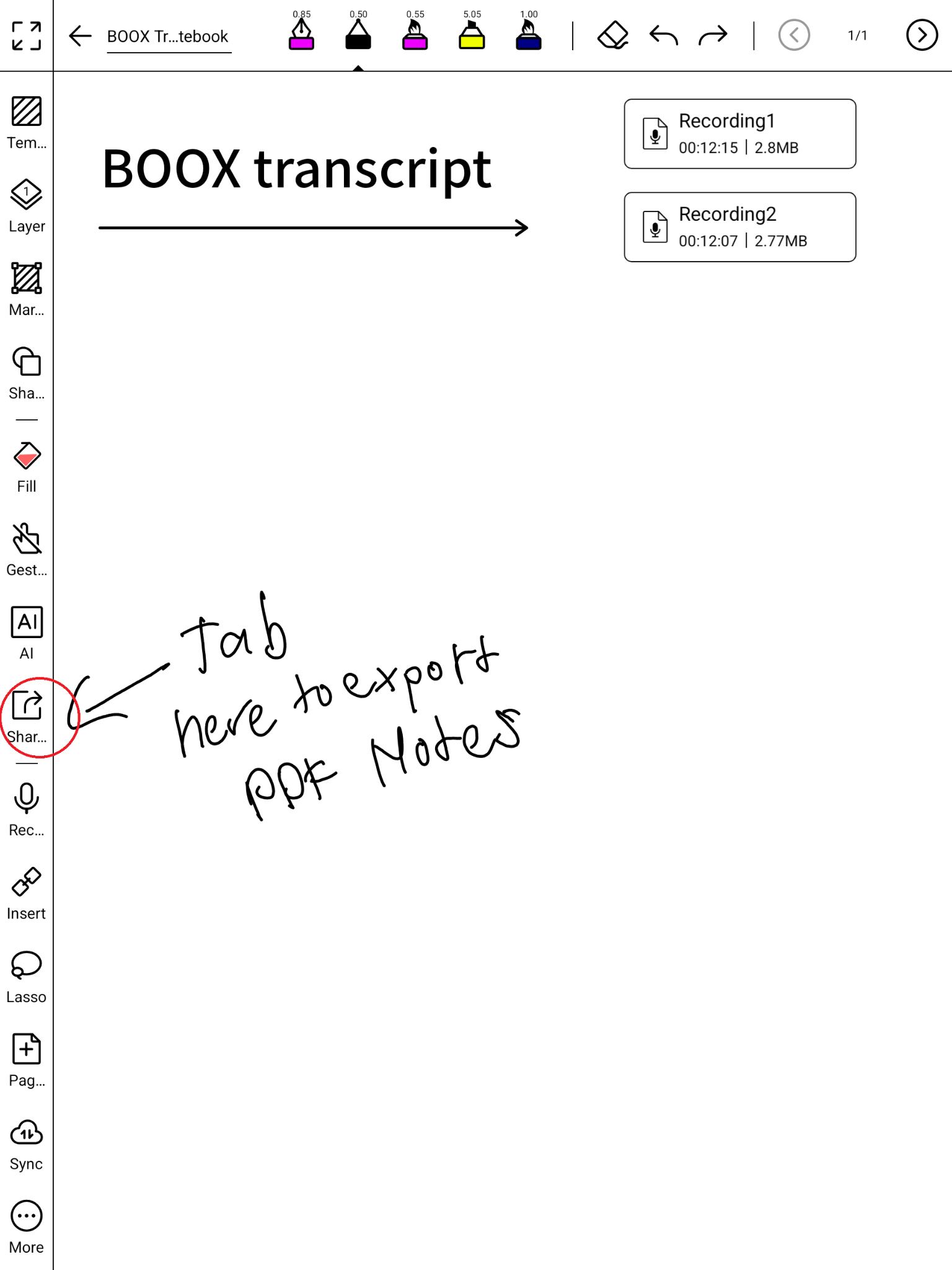
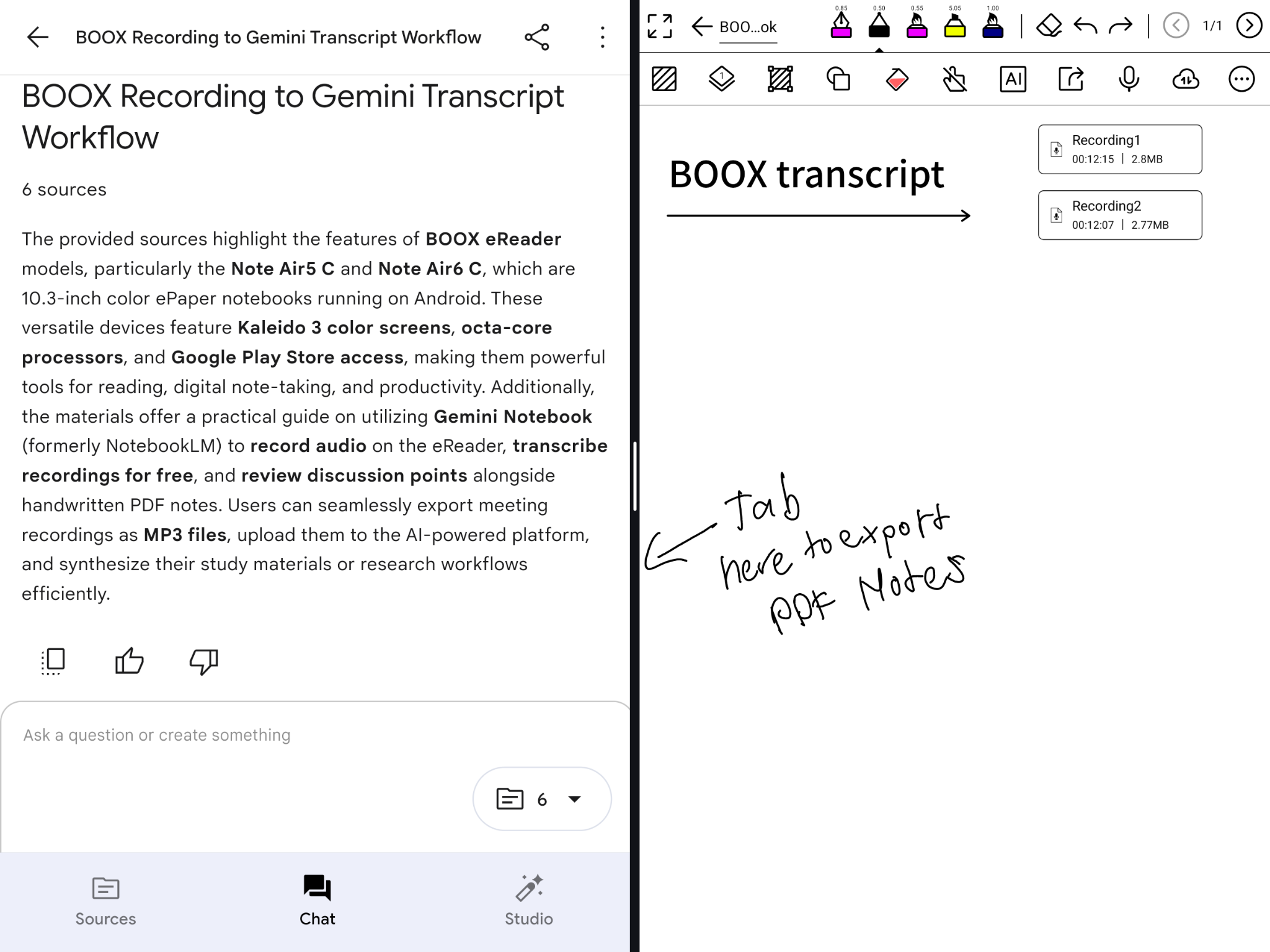
Return to BOOX Notes and open the notebook for your session. Tap the Share icon on the left toolbar, highlighted below.
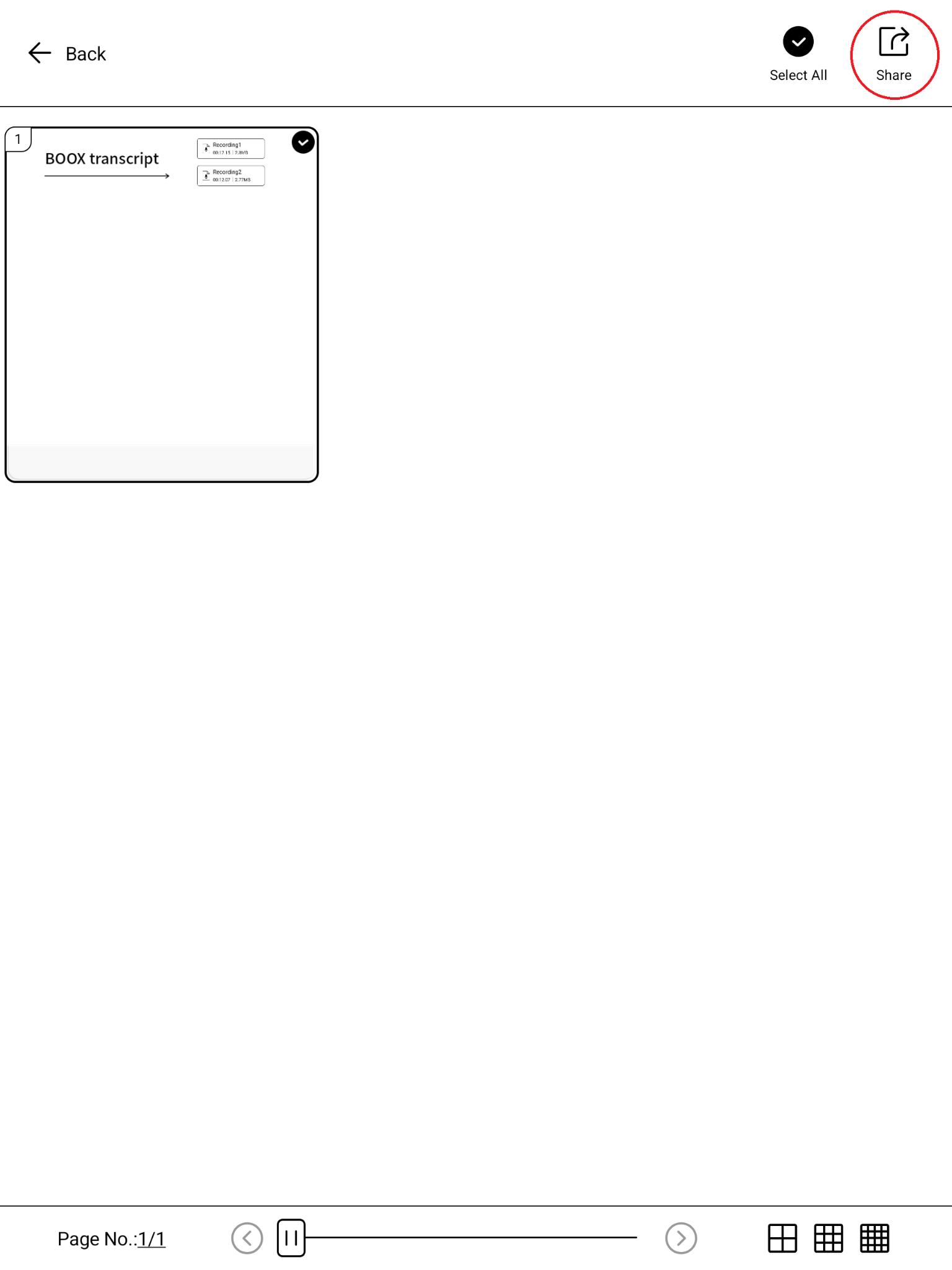
Select the handwritten pages you want to include, or choose Select All, then tap Share at the top right. Choose PDF in the export options, save the file, and add it to the same Gemini Notebook as your MP3 recording using Add sources. If Gemini Notebook appears in the Android sharing menu, you can share the exported PDF directly to that notebook.
Open the PDF to check that the handwriting is readable. If essential names, formulas or sketches are not understood correctly, add a typed explanation as another source. Your handwritten notes provide context, but they should not silently replace what was actually said.
With both sources selected, try:
Compare the recording transcript with my handwritten PDF notes. List the main topics, confirmed decisions, unresolved questions and next steps. Cite the source supporting each point. Flag discrepancies between the sources instead of guessing which is correct.
For thesis advising, you could also ask:
Identify the supervisor’s requested revisions, methodological questions and agreed next steps. Separate explicit instructions from suggestions. Include deadlines only when stated, and flag anything I should clarify at the next session.
Use BOOX split-screen, where supported, to view your handwritten notes or PDF beside the app while reviewing. Notebook Chat helps you connect the material; the PDF preserves your original page layout.
Turn the session into useful follow-up material
Once you have checked the transcript and notes, explore the tools available in Studio, such as reports, Audio Overviews, quizzes or other study materials. Availability can vary by app version and account. An Audio Overview is a generated discussion of your sources, so keep it separate from your original meeting recording and transcript.
For a practical meeting follow-up, ask for an action table with Task, Owner, Deadline, Priority, Status and Notes. Require “Not specified” wherever the sources do not supply the information.
Quick troubleshooting
- Upload fails: check the internet connection, confirm the MP3 plays locally and try uploading from Add sources. If necessary, split a long recording into shorter parts and name them in order.
- Transcript contains errors: check the audio, confirm technical terms yourself and keep a reviewed copy. Prompting is useful for formatting, but audio quality remains critical.
- Handwriting is missed: add typed notes for essential details and review the PDF visually.
- Buttons look different: update the app and BOOX firmware, or use Google’s web version. Screenshots reflect the supplied demonstration.
Build your BOOX study workflow
The Note Air5 C combines paper-like handwriting with access to Android apps. This workflow lets you listen during the session, capture your own thinking and review a searchable transcript afterwards.
For the newer 10.3-inch colour ePaper notebook, explore the BOOX Note Air6 C at BOOX Malaysia. Check regional availability of BOOX AI features before relying on them; the recording-and-upload approach gives you another way to organise your discussions.
References
- Google announcement of Gemini Notebook
- Google help on sources and audio import
- Google help on the Android app
- Google help on Notebook Chat
- Official BOOX Note Air5 C specifications
Guide prepared 2 October 2026. BOOX recording steps and screenshots are based on the supplied Note Air5 C demonstration. Google app names, features and availability may change.
![[Pre-Order]BOOX Picco 3.97-inch Pocket eReader (16GB microSD)](https://booxmalaysia.com/wp-content/uploads/2026/10/1_004f8439-0b2d-42cb-98fb-26feec2833f7-300x300.jpg)