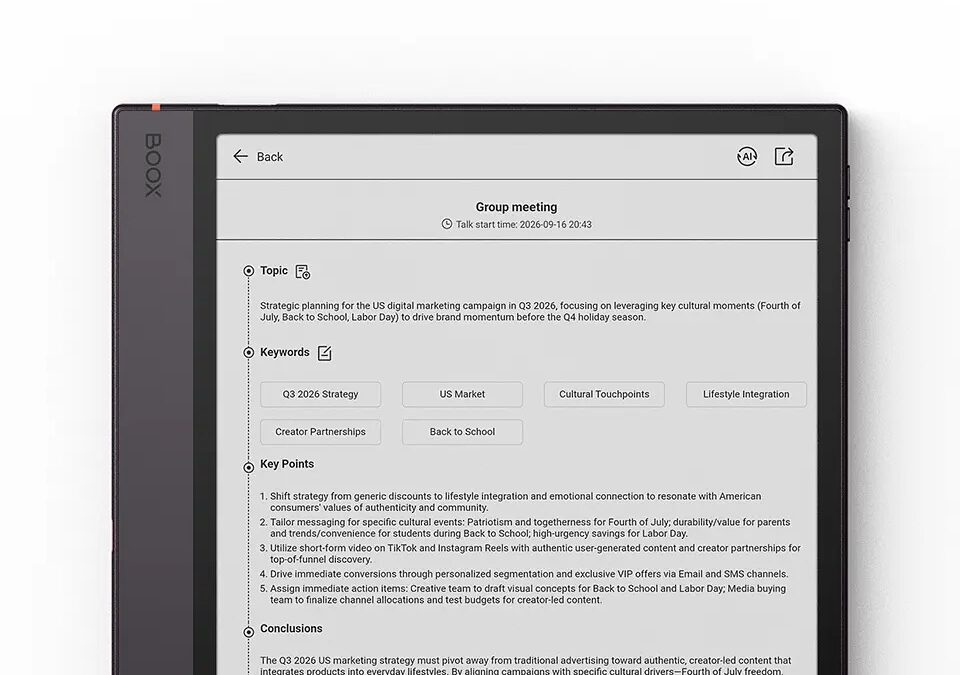
Talk Insights is an intelligent feature within the Notes app that enables users to record, transcribe, and summarize content while talking or during a meeting. During a talk, it can automatically convert spoken content into text in real-time (with WiFi Connection) and generate a concise meeting summary afterward.
Availability
Talk Insights is currently available in specific countries and regions. Only certain languages are supported for speech recognition and transcription. We will gradually expand the supported regions and languages based on actual circumstances. Before enabling this feature, please ensure that your country or region is listed below (update as of 30 Oct 2026).
| 1. Countries and Regions (current roll-out):The United States, Canada, Australia, New Zealand, Japan, South Korea, Singapore, Malaysia, Thailand, Vietnam, Indonesia, Brunei, Mexico, Brazil, Argentina, Chile, Colombia, Saudi Arabia, United Arab Emirates, Israel, Qatar, Kuwait, Bahrain, Oman 2. Supported Languages: English, Traditional Chinese, Simplified Chinese, Cantonese, Spanish, French, Arabic, Brazilian Portuguese, Japanese, Korean, Indonesian, Thai, Vietnamese, Malay |
Follow below steps to enable Talk Insights
Step 1. Turn on Wi-Fi or mobile data in your BOOX Device.
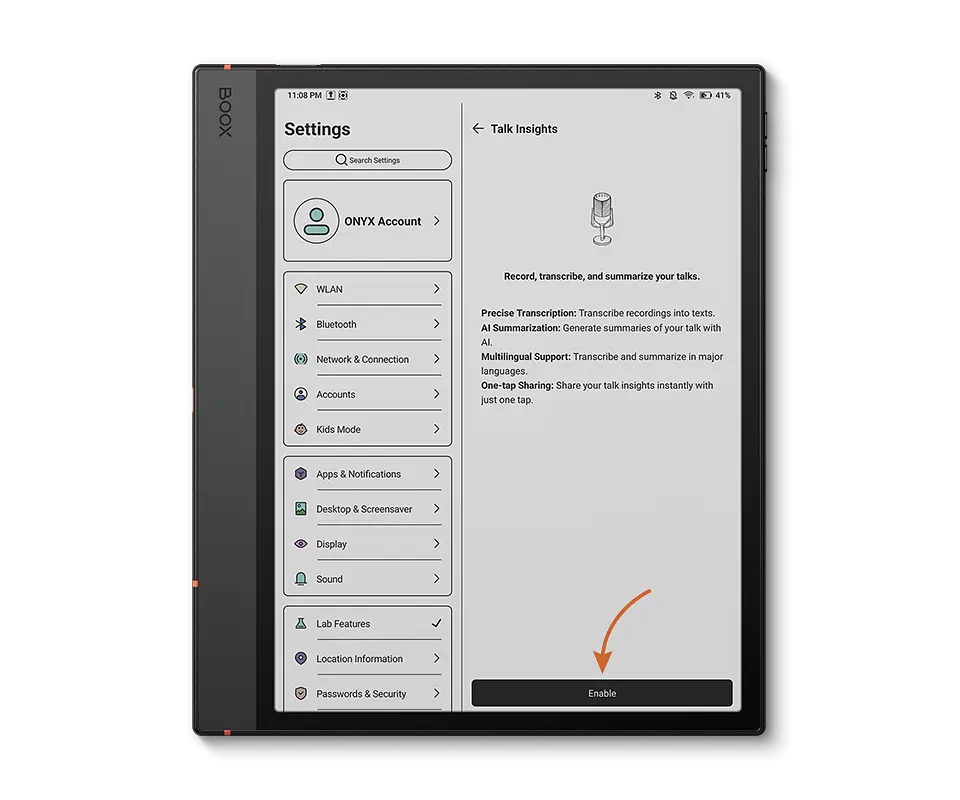
Step 2. Open Settings > Select Lab Features > Tap on Explore Lab Features
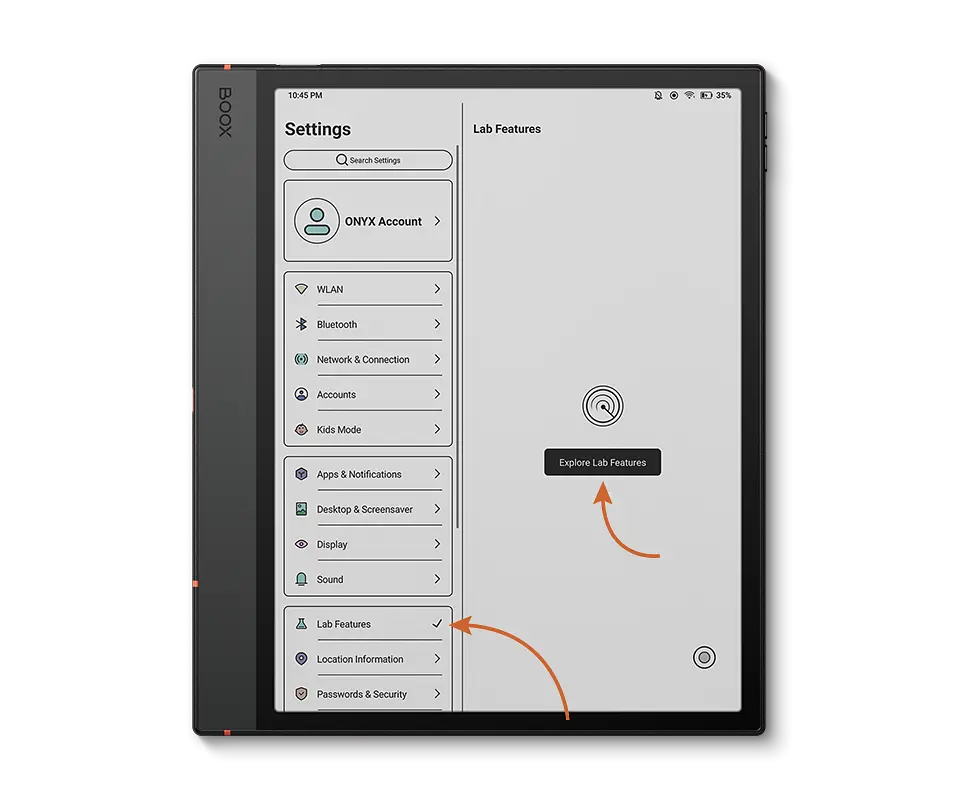
Step 3. Then, Choose “Talk Insights.”
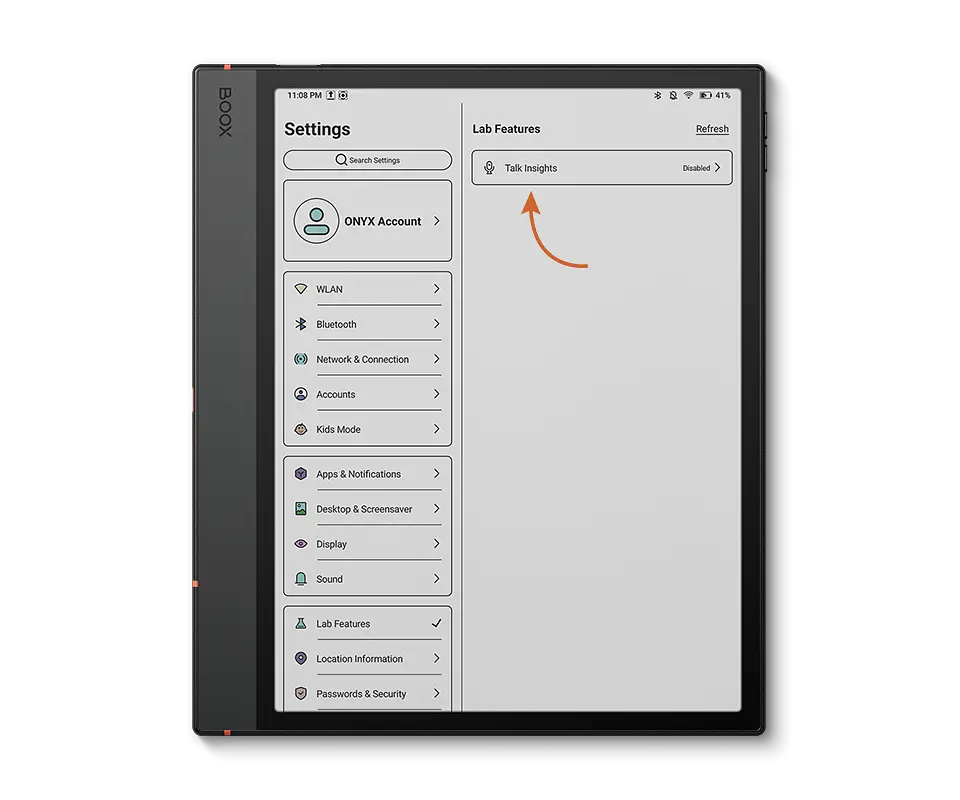
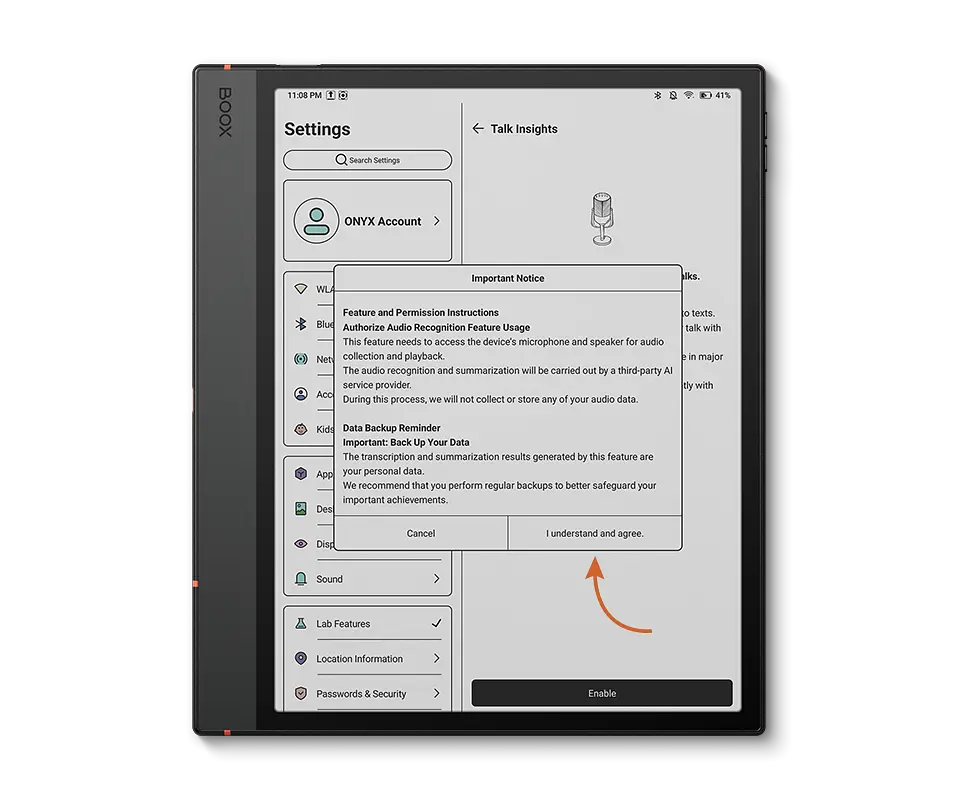
Step 4. Enable the feature. Carefully read any pop-up notices.
Step 5. Tap “I understand and agree” to accept the terms and privacy information.
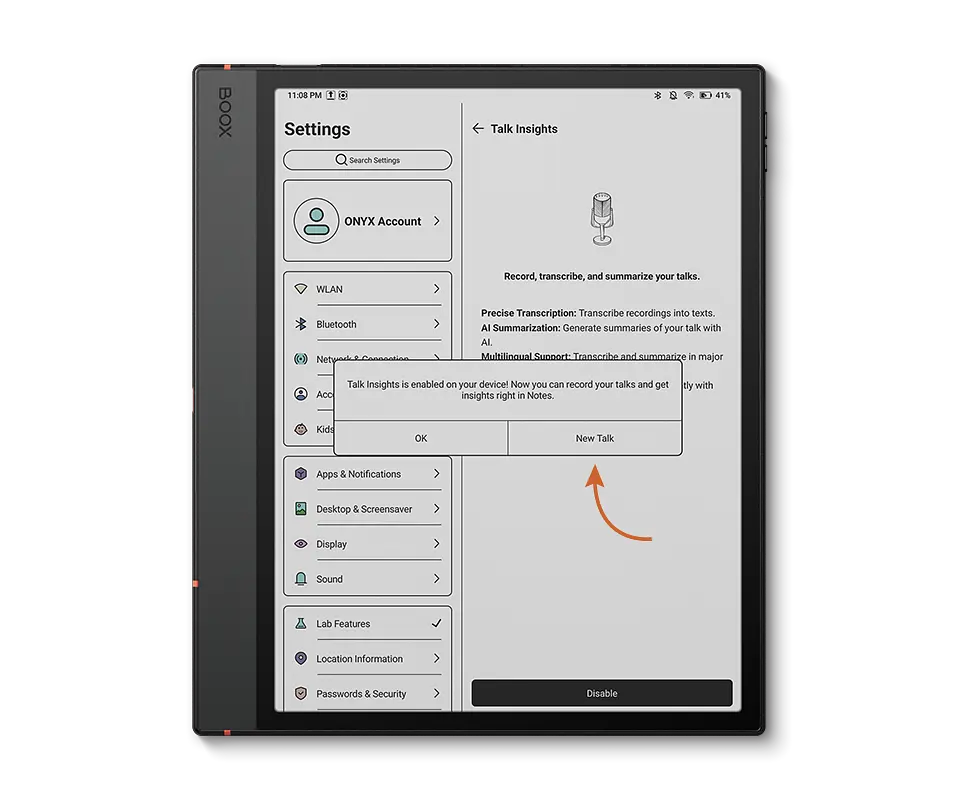
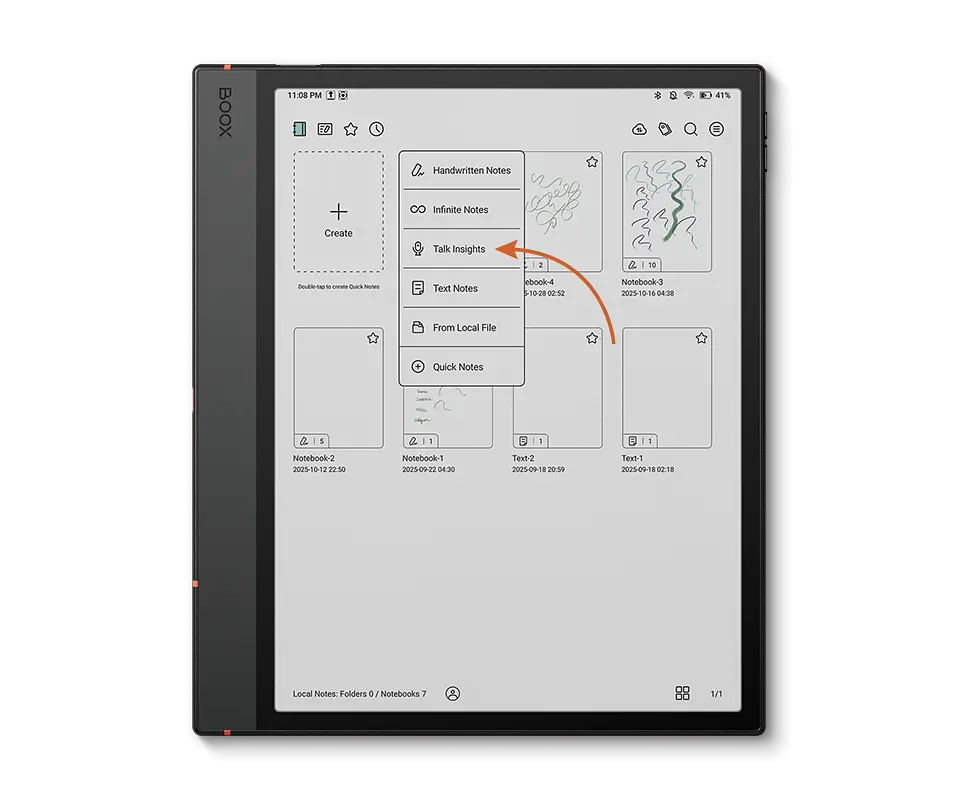
Finally, you can now tap New Talk to start using Talk Insights immediately, or open the Built-in Notes app and tap Create to create a new Talk Insights note.
Interface Overview
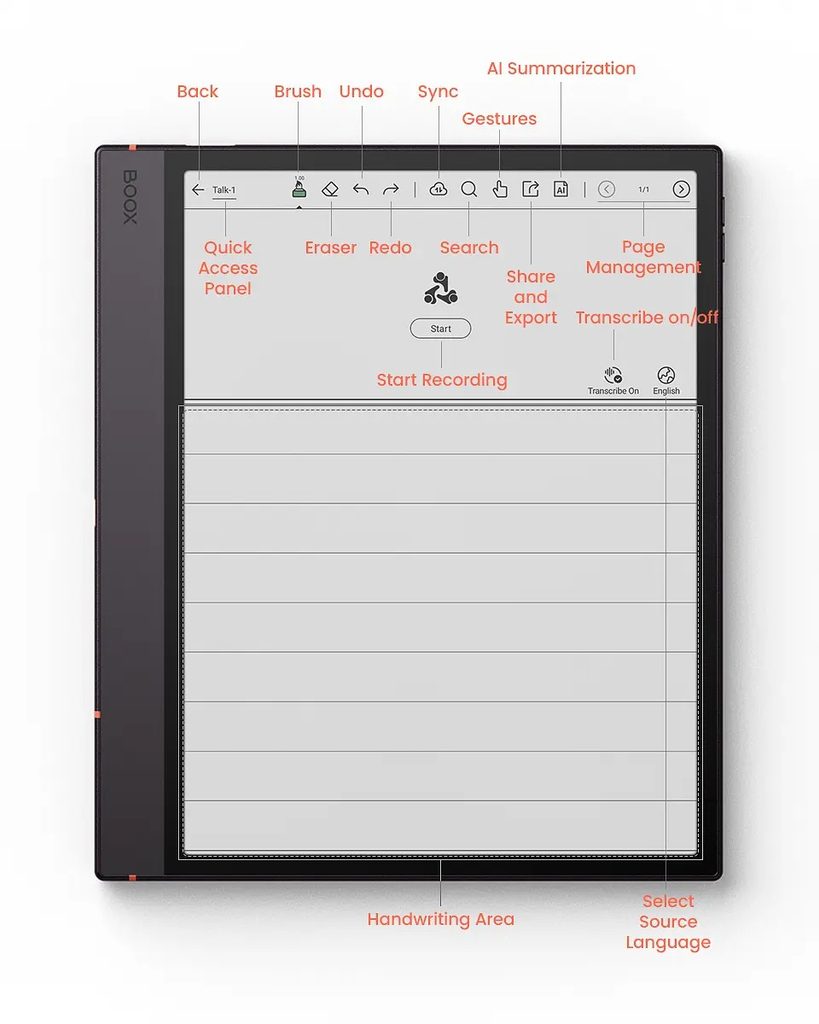
Recording Controls
When using Talk Insights to capture a conversation, you can easily manage the recording process through on-screen controls.
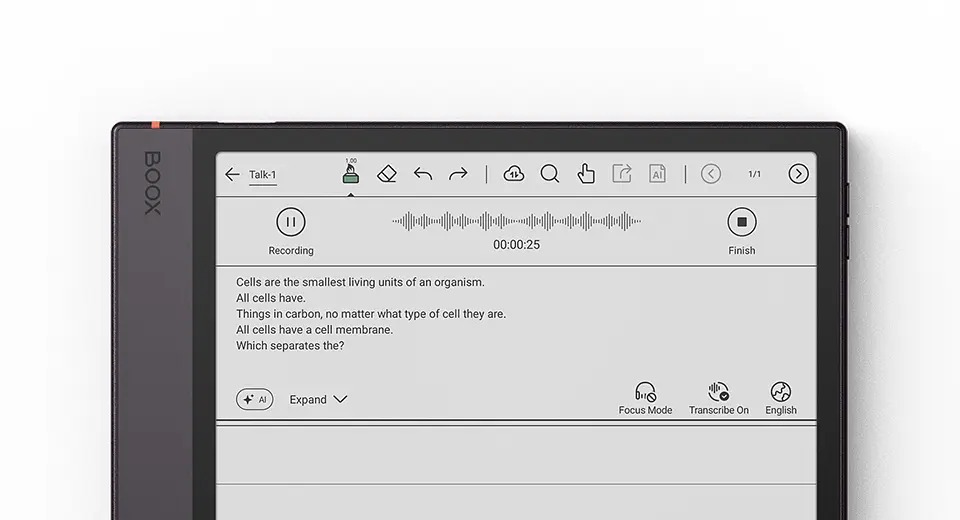
During recording, check the left-side button to confirm whether the system is actively recording. Tap the button to pause or resume the recording at any time. Once the conversation is complete, tap “Finish” on the right side to stop recording.
During recording, Talk Insights performs real-time transcription, converting speech into text as you talk.
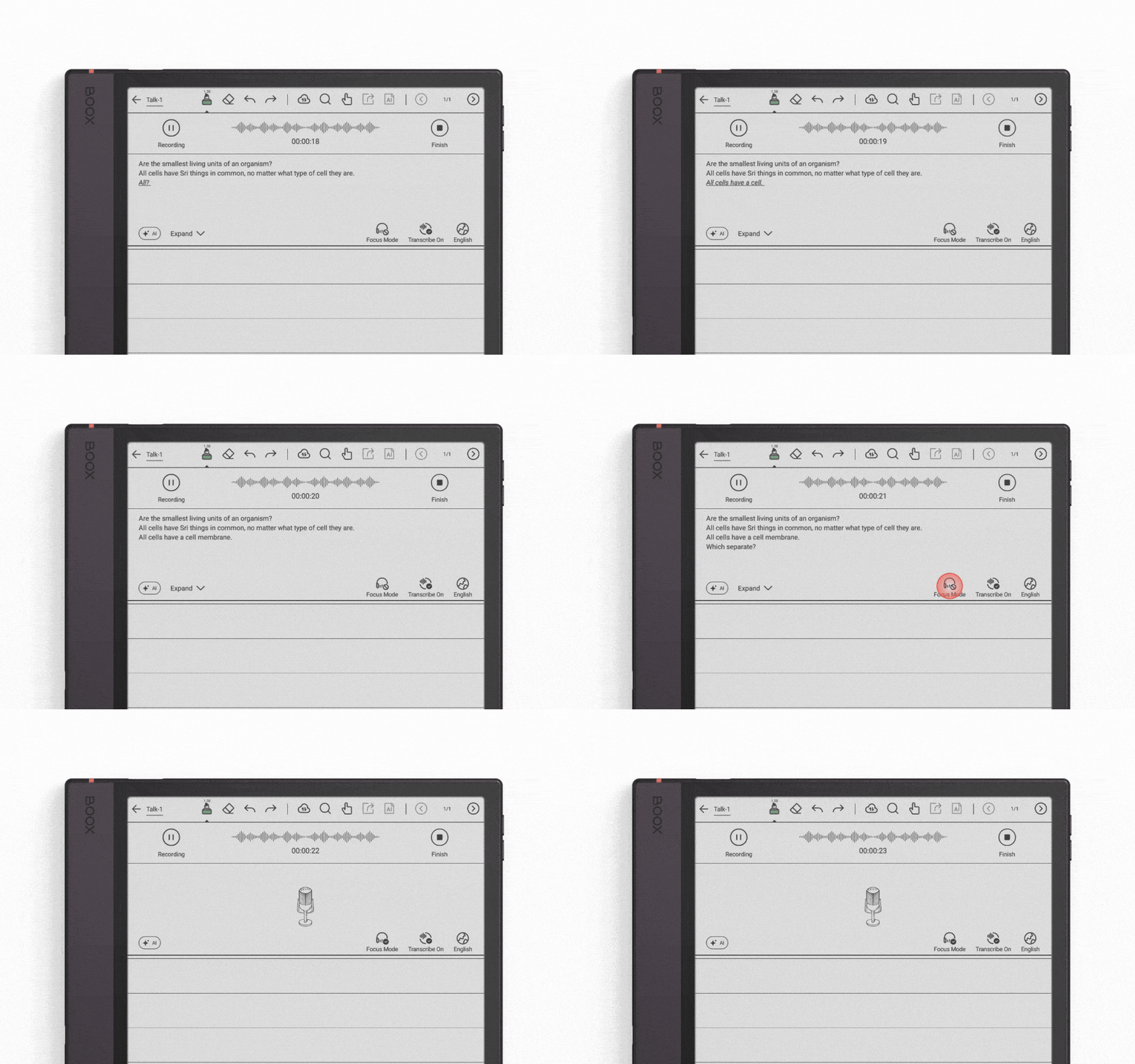
Focus Mode
Focus Mode allows you to hide the live transcription area during recording or transcription. Tap it to turn on/off Focus Mode to hide/show the real-time transcription area.
How to Replay Recordings
After the recording and transcription are completed, you can replay the recorded audio directly.
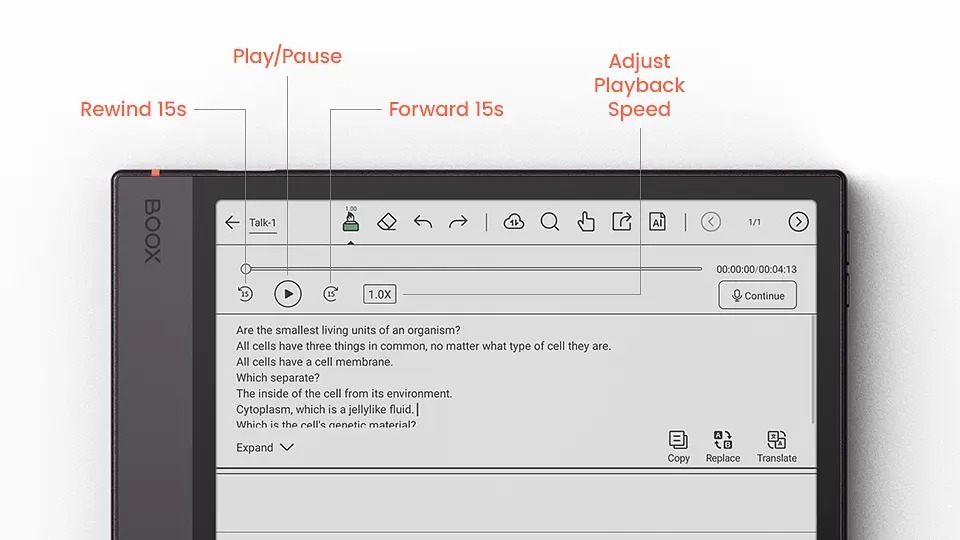
If you want to add more content to the same Talk after playback, tap “Continue”, and the newly recorded audio and transcript will be appended to the existing Talk Insights note.
Transcription Text
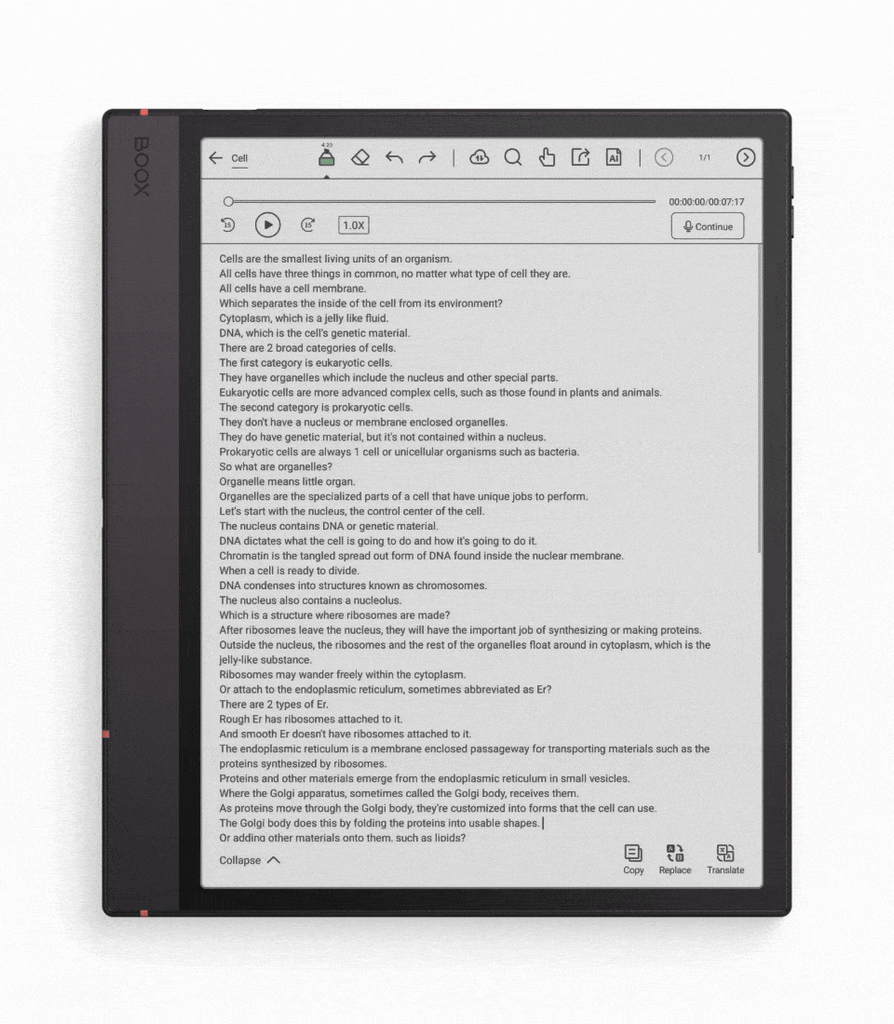
After transcription is generated, you can tap Expand/Collapse to show or hide the full transcription content.
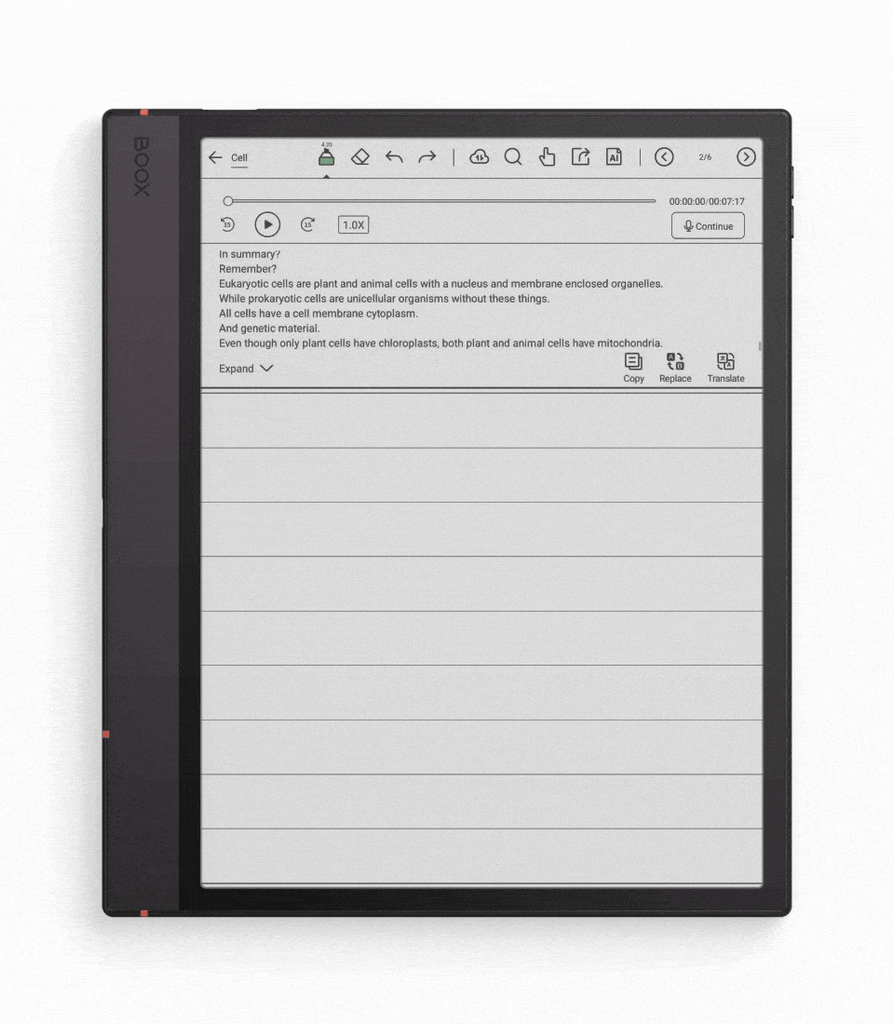
Tap Copy to copy the full transcription text to your clipboard.
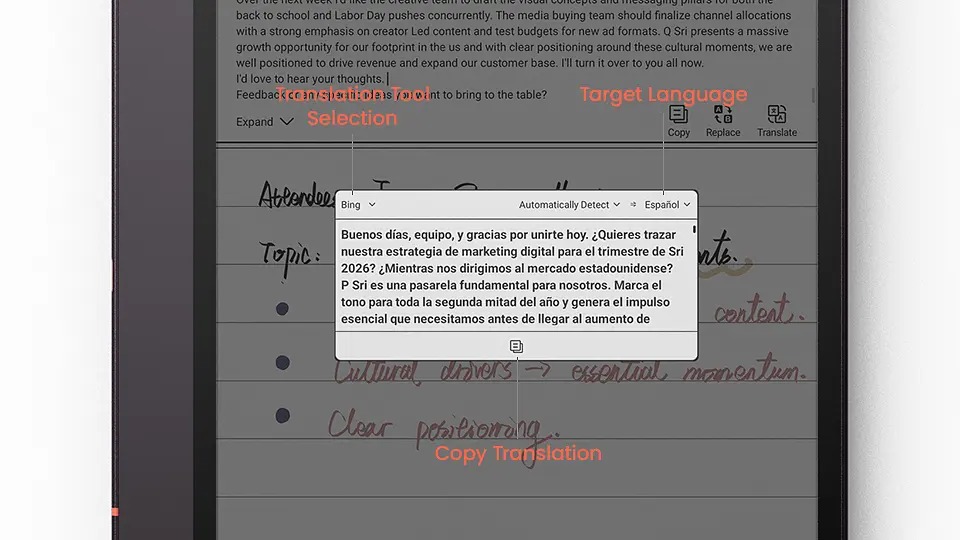
Tap Translate to generate a translated version of the transcription in your selected target language.
Meeting Minutes
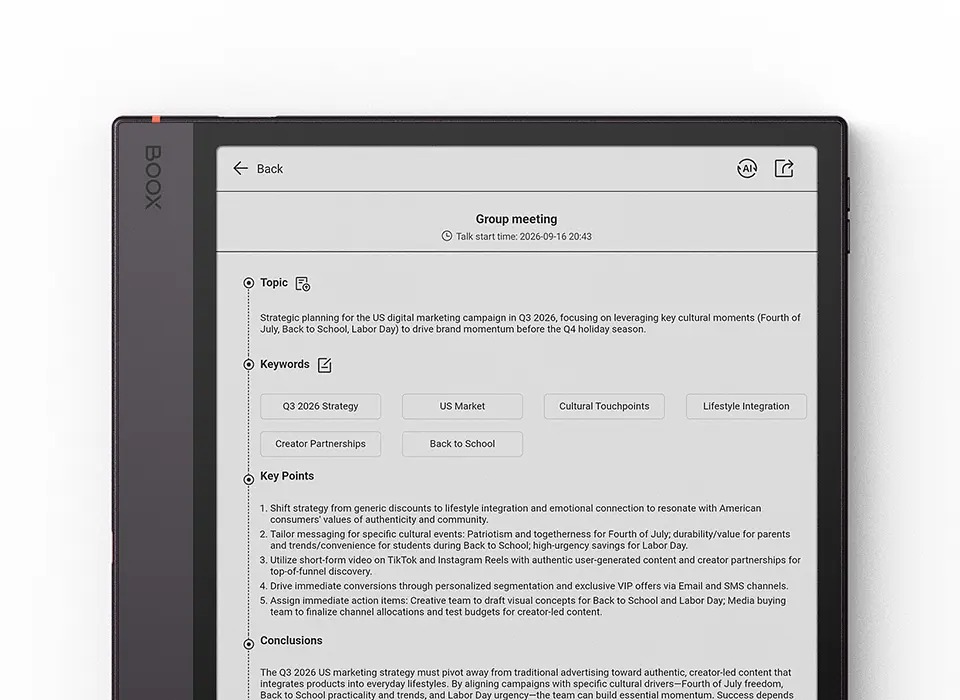
After the transcription is completed, you can use the AI Summarization feature in Talk Insights to automatically generate a concise and structured summary of your talk.
How to Generate Meeting Minutes
Once transcription is complete, tap AI Summarization. Select the content type and language for the summary document.
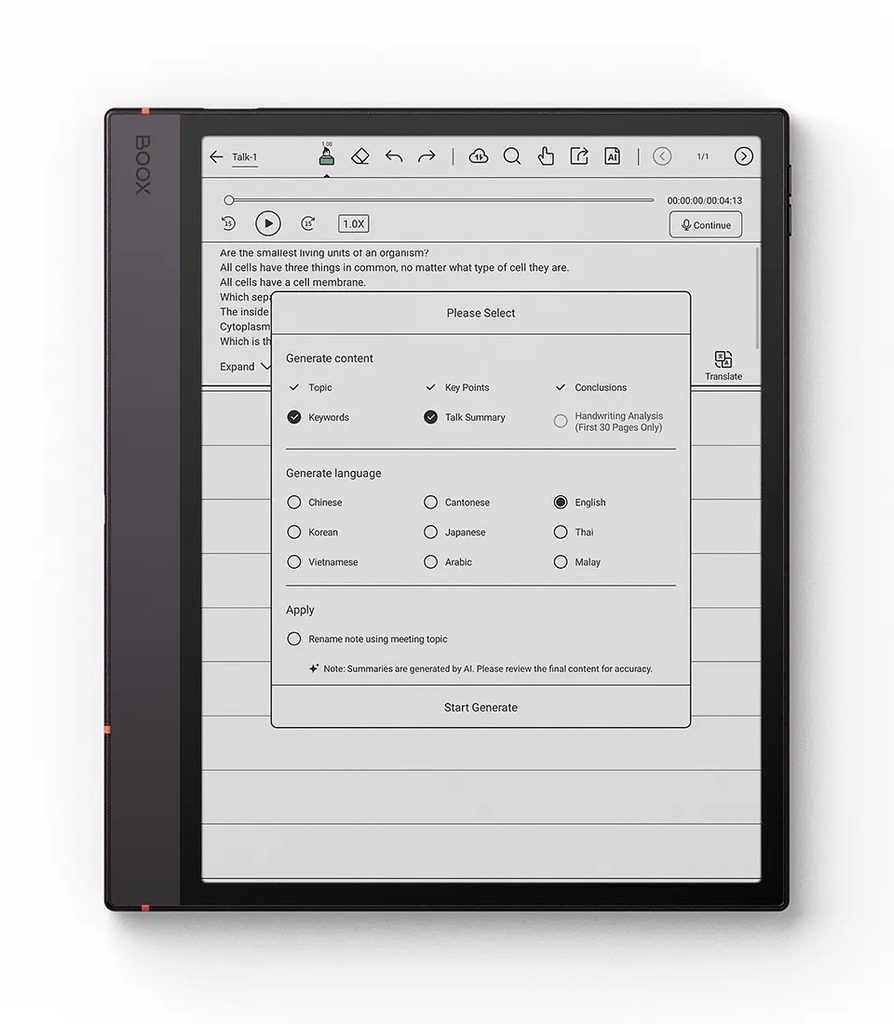
Wait a few moments while the AI processes the content and generates your summary.
What if I Want to Regenerate Meeting Minute
If you are not satisfied with the generated summary, simply tap Regenerate to have the system create a new version.
Can I Export the Meeting Minutes to Other Devices
Tap the Export icon in the upper-right corner to export the AI-generated summary.
| Notes: Always obtain consent from all participants before recording any conversation.If you plan to turn off Talk Insights, back up all Talk Insights notes first. Once the feature is turned off, Talk Insights notes may be removed from the device.Background noise and low audio quality can reduce transcription and summary accuracy. Use it in a quiet environment whenever possible. |
Troubleshooting
1. Feature not visible
Confirm your app is up to date and your device region/language matches the supported list.
2. Low-quality transcription
Move to a quieter area, or position the device closer to the speaker(s).
3. Missing notes after disabling
Check your backup (cloud or local export). If you did not back up before disabling, notes removed from the device may be unrecoverable.
![[Pre-Order]BOOX Picco 3.97-inch Pocket eReader (16GB microSD)](https://booxmalaysia.com/wp-content/uploads/2026/10/1_004f8439-0b2d-42cb-98fb-26feec2833f7-300x300.jpg)